
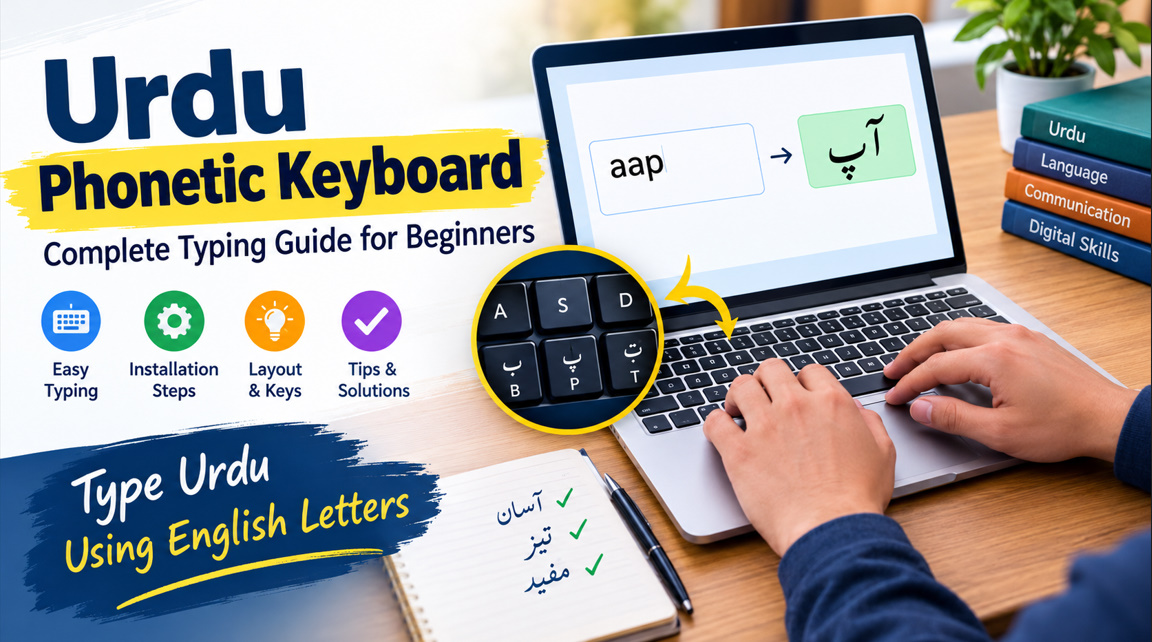
An Urdu phonetic keyboard makes typing in Urdu easier by mapping Urdu letters to familiar English keyboard sounds. Instead of memorizing an entirely new keyboard layout, users can type Urdu words by pressing keys that correspond to their pronunciation. This approach is useful for students, teachers, writers, bloggers, and anyone who communicates in Urdu digitally.
What Is an Urdu Phonetic Keyboard?
An Urdu phonetic keyboard is a typing layout that allows users to enter Urdu characters using familiar English keyboard keys. For example, typing a word’s approximate Roman Urdu spelling can produce its Urdu-script equivalent. The exact key mapping depends on the keyboard layout or software being used.
Unlike a traditional Urdu keyboard layout, which may require memorizing the positions of individual characters, a phonetic keyboard follows recognizable sound patterns. This makes Urdu typing more accessible to beginners and people who already understand spoken Urdu but have limited experience writing it on a computer.
- Uses familiar English keyboard keys
- Converts keystrokes into Urdu letters
- Supports Urdu-script typing
- Helps beginners learn faster
- Reduces keyboard memorization
- Works with compatible applications
- Supports everyday Urdu communication
- Can improve typing confidence
Benefits of Using an Urdu Phonetic Keyboard
One of the biggest advantages of an Urdu phonetic keyboard is convenience. Users can write Urdu messages, school assignments, articles, and social media posts without learning the positions of every Urdu character. The familiar key arrangement makes the transition from English typing to Urdu typing easier for many bilingual users.
Phonetic typing can also improve productivity when creating Urdu-language content. Bloggers can draft articles, students can complete assignments, and professionals can prepare documents in their preferred language. With regular practice, users can develop better typing accuracy while becoming more comfortable with Urdu spelling and the Urdu alphabet.
- Easy for beginners to understand
- Familiar English-key arrangement
- Convenient for bilingual users
- Useful for school assignments
- Supports Urdu content creation
- Helps with digital communication
- Suitable for everyday writing
- Encourages regular Urdu typing practice
How to Install an Urdu Phonetic Keyboard on Windows
Windows users can add Urdu as an input language through the system’s language settings. Open Settings, navigate to the language and region options, and select the option to add a language. Search for Urdu and follow the available installation instructions. The exact steps may differ slightly between Windows versions.
After adding Urdu, check the available keyboard layouts to determine whether an Urdu phonetic option is included. Some Windows configurations offer standard Urdu layouts rather than phonetic ones, so an additional compatible input method may be necessary. Once configured, switch between English and Urdu using the language indicator or the assigned keyboard shortcut.
- Open Windows Settings
- Select Language and Region
- Add the Urdu language
- Review available keyboard layouts
- Choose a phonetic layout if available
- Install any required input method
- Switch between input languages
- Test typing in a text editor
How to Use an Urdu Phonetic Keyboard on Mac
Mac users can enable Urdu input through macOS keyboard settings. Open System Settings and locate the Keyboard section, then find the input sources option. Add Urdu and review the available layouts. If a phonetic layout is not provided, users may need a compatible input tool that supports sound-based Urdu typing.
After configuring the input source, use the input menu to switch languages while typing. Open a text editor and test a few common Urdu words to understand how the selected layout maps sounds to characters. Checking the layout documentation can help identify special keys, punctuation behavior, and differences between Roman Urdu spelling and Urdu-script output.
- Open System Settings
- Navigate to Keyboard
- Find Input Sources
- Add an Urdu input source
- Check for phonetic support
- Install a compatible tool if needed
- Switch languages from the input menu
- Practice in a text editor
Urdu Phonetic Keyboard for Android and iPhone
Smartphones make Urdu typing convenient for messaging, social media, and online communication. Android and iPhone users can explore their device’s keyboard settings to add an Urdu language option. Depending on the keyboard application, available input methods may include phonetic typing, transliteration, or predictive text suggestions.
A phonetic or transliteration-enabled mobile keyboard can convert Roman Urdu input into Urdu script. For example, typing an approximate sound-based spelling may display suggested Urdu words that users can select. Because keyboard features differ by application and device, it is helpful to check the language settings and test the output before writing longer messages.
- Open your phone’s keyboard settings
- Add Urdu as an input language
- Check available typing methods
- Enable transliteration if supported
- Explore Urdu word suggestions
- Switch languages while typing
- Test common words and phrases
- Review spelling before sending messages
Common Urdu Phonetic Keyboard Keys and Examples
An Urdu phonetic keyboard uses sound-based associations, but the exact mapping is not universal. Different layouts may assign different English keys to the same Urdu character, particularly for sounds that do not have direct English equivalents. Therefore, users should consult the key map provided by their chosen input method rather than assuming every keyboard follows identical rules.
For beginners, a practical way to learn is to type familiar words and compare the results with correct Urdu spelling. Start with short greetings, everyday expressions, and common vocabulary. As familiarity increases, practice longer sentences and punctuation. This method builds confidence while helping users recognize how their selected keyboard handles Urdu sounds and letters.
- Learn the selected layout’s key map
- Practice common Urdu letters
- Type short everyday words
- Compare output with correct spelling
- Explore long-vowel combinations
- Practice letters with similar sounds
- Check punctuation placement
- Save frequently used Urdu phrases
Common Urdu Phonetic Keyboard Problems and Solutions
Users sometimes experience incorrect characters, unexpected word suggestions, or difficulty switching between Urdu and English. These issues may result from selecting the wrong input layout, using an incompatible application, or relying on a keyboard with different phonetic mappings. Checking the active language and reviewing the layout instructions can resolve many common typing problems.
Another challenge involves Urdu letters that sound similar or have no exact English equivalent. Roman Urdu spelling also varies from person to person, which can affect transliteration results. To improve accuracy, users should learn the conventions of their chosen keyboard, review suggested words carefully, and correct spelling before publishing or sharing important Urdu text.
- Verify the active input language
- Check the selected keyboard layout
- Review phonetic mapping instructions
- Update the keyboard application
- Test typing in another editor
- Correct inaccurate word suggestions
- Practice similar-sounding Urdu letters
- Review text before publishing
Tips for Improving Urdu Phonetic Typing Speed and Accuracy
Regular practice is one of the most effective ways to become comfortable with an Urdu phonetic keyboard. Begin with short sentences, then gradually move to paragraphs, essays, and longer documents. Focus on correct spelling before speed, because accurate Urdu writing is more useful than typing quickly with frequent mistakes.
It also helps to keep a list of common words, learn the positions of frequently used characters, and practice switching between English and Urdu. Writers and students can improve efficiency by proofreading their work and becoming familiar with their keyboard’s punctuation and text-editing features. Consistent practice makes Urdu digital communication easier over time.
- Practice for a few minutes daily
- Start with simple Urdu sentences
- Prioritize spelling accuracy
- Learn frequently used key combinations
- Practice English-to-Urdu switching
- Review text after typing
- Build a personal vocabulary list
- Gradually increase typing complexity